Many iPhone users may have faced a similar problem. It’s frustrating when your device suddenly stops working. In this article, we’ll explore the common reasons why your iPhone won’t turn on and provide 5 easy ways to fix it!
Charge Correctly
This might seem obvious, but try charging your iPhone for at least 30 minutes to ensure the battery isn’t completely dead. If you have charged but it makes no difference, try using a different charger and cable to rule out any issues with your current one.
Use an Apple-certified cable/adapter
Clean the charging port with a dry toothbrush.
Wait 30 minutes. Deeply drained batteries often show no sign of charging at first.
Force Restart
On your iPhone 8 and later:
Quickly press and release the Volume Up button
Quickly press and release the Volume Down button.
Press and hold the Side Button for around 15 seconds until the Apple logo appears.
On your iPhone 7 or iPhone 7 Plus:
Press and hold both the side button and the volume down button at the same time until you see the Apple logo (this might take longer than 10 seconds).
On your iPhone 6s and earlier:
Press and hold both the Home button and the side button or the top button until you see the Apple logo (this takes around 10 seconds).
Update via iTunes/Finder
Launch iTunes (PC) or Finder (Mac) on your computer. Then use a USB cable to connect your iPhone to your computer.
Hold down the Sleep/Wake button and the Volume Down button simultaneously for 10 seconds.
Release the Sleep/Wake button, but keep holding the Volume Down button; iTunes/Finder should detect your iPhone in Recovery Mode.
Click the “Update” button in iTunes/Finder to update your iPhone to the latest version of iOS.
Wait for the update to complete. This may take a few minutes.
Repair iPhone with TunesKit iOS System Recovery
When manual fixes fail, you can try professional third-party recovery software. Through overall testing and comparison, TunesKit iOS System Recovery is recommended, which supports fixing more than 150 iOS system issues without data loss. Steps are as follows:
Install TunesKit iOS System Recovery on your computer and connect the dead iPhone with a USB cable.
Choose “iOS System Repair”, click “Start”.
Select “Standard Repair” (no data loss).
Confirm your device information and click “Download”
Click “Start Standard Repair”, wait for the repair to complete.
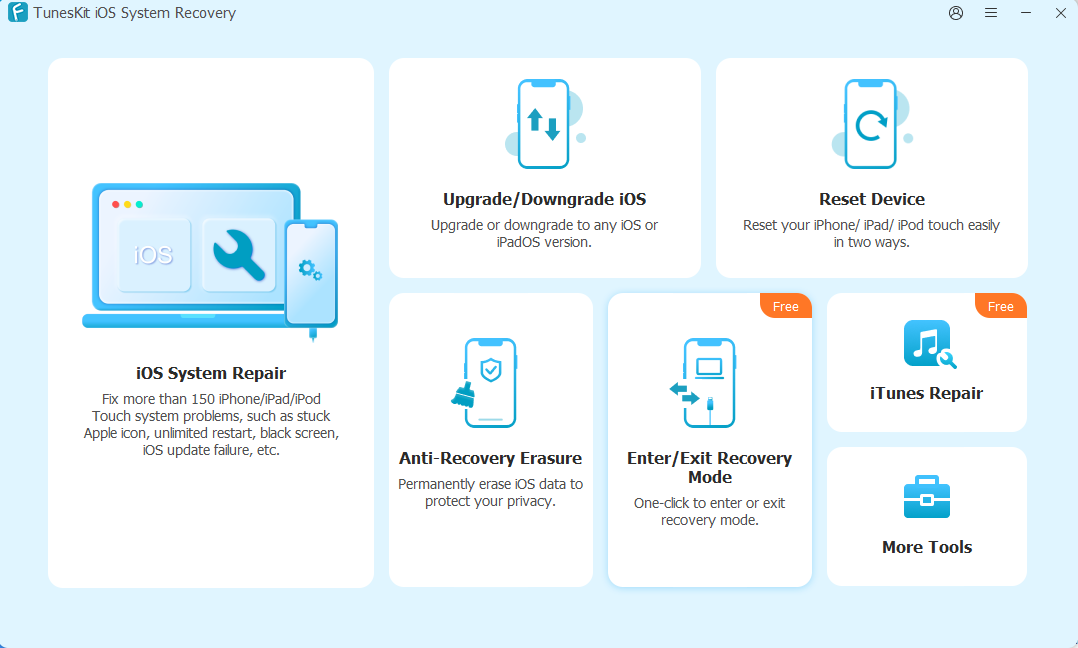
Besides fix iPhone won’t turn on, TunesKit iOS System Recovery can also repair iPhone stuck on apple logo, boot loop, and iPhone green screen. In addition, it also supports upgrading and downgrading iOS version, permanently erasing iOS data, making it a practical software. Moreover, if you have no idea how to exit recovery mode iPhone, it can help you for free.
- Visit an Apple Store
If none of the above methods work, there’s likely a hardware issue with your iPhone. It’s recommended that you visit an Apple Store or authorized repair center for professional assistance.