Converting Outlook PST to EML can be problematic if the conversion process halts unexpectedly, errors arise, the generated EML files are incomplete, or the PST file fails to be recognized. These problems may occur due to corrupted PST file, insufficient storage, oversized mailboxes, permission restrictions or compatibility issues.
If you are trying to transfer Outlook emails to Thunderbird, Apple Mail, Windows Mail or any other EML-supported application, a failed conversion process can put an end to the migration. Fortunately, there are several practical ways to detect and fix PST to EML conversion errors.
This guide explains the common causes and fixes, and then the step-by-step method using DataVare PST to EML Converter.
PST to EML Conversion Failure Reasons
It helps to know what is causing the problem before you apply a fix. Typical causes are:
Corrupted PST File: The Outlook data may get corrupted, and then the emails may not be readable properly.
Large PST file: Very large mailboxes may take longer time to process and may cause interruptions in conversion.
Insufficient disk space: The destination folder should have sufficient space for saving the exported EML files and attachments.
Permission restrictions: The converter might not have enough permissions for the PST or the output folder.
Damaged or Inaccessible Outlook Data: Some PST files might have corrupted or inaccessible email items.
Too many files at a time: Troubleshooting can be more difficult if you process a large mailbox all at once.
Incorrect output location: The export may fail if the destination folder is restricted or unavailable.
Practical Methods to Resolve PST to EML Conversion Errors
1. See if the PST file opens in Outlook
First of all, open PST file in Outlook. The PST can get corrupted if Outlook fails to open it or errors are shown while accessing messages.
The built-in repair utility of Outlook can be useful in case you are having a minor PST issue. Always make a backup copy before trying to repair.
2. See Available Storage
EML files can consume a lot of disk space, especially if PST has attachments. Check the free space on the drive where the output folder is.
If storage is low, remove unneeded temporary files, or choose another drive with sufficient capacity.
3. Copy the PST to a Local Drive
If your PST is located on a network drive, external device, cloud-synced folder, or removable storage, copy it to your computer’s local drive.
A local copy can eliminate disruptions caused by network access or disconnected storage.
4. Check files and folder permissions
Ensure you have read access to the PST file and write access to the destination folder. Try creating a test file in the output folder. If Windows blocks you, select a different folder that you have full access to.
5. Close Outlook Prior to Conversion
Outlook can have the PST file open when it is open. When starting the conversion, please close Outlook and any other applications that might be using the PST file.
6. Convert PST Using Dedicated Software
If manual troubleshooting does not help, a dedicated PST-to-EML converter can be another way to read the PST and export its messages.
One of the practical options is DataVare PST to EML Converter. It allows you to convert Outlook PST mailbox data to EML files without saving each email manually.
Real-World Example: Fixing a Failed PST to EML Migration
Imagine a user with a 12GB Outlook PST with many years worth of business correspondence. The first attempt to manually save emails as EML took too long and the exports were not complete.
Then, the user copied the PST to a local drive and checked the available storage space. Outlook was then closed down. Instead of exporting each message one by one, the user opened the PST in DataVare PST to EML Converter, selected the required mailbox folders and specified a new output location.
The conversion was successfully done from PST file and the resultant EML files were saved as per the selected mailbox data. This method removed the need to open and save thousands of messages by hand.
Step-by-Step Guide: How to Use the Tool to Fix Conversion Errors
If normal conversion attempts fail, follow these steps:
Step 1: Prepare the PST File
Find the Outlook PST file and make a backup copy. If possible, put the working copy on a local drive that has sufficient free space.
Step 2: Exit Outlook
Close Microsoft Outlook before starting the conversion. This will help prevent the PST file from being locked by another process.
Step 3: Download and Run the Converter
Download and install the PST to EML Converter Software on any supported Windows machine and run it.
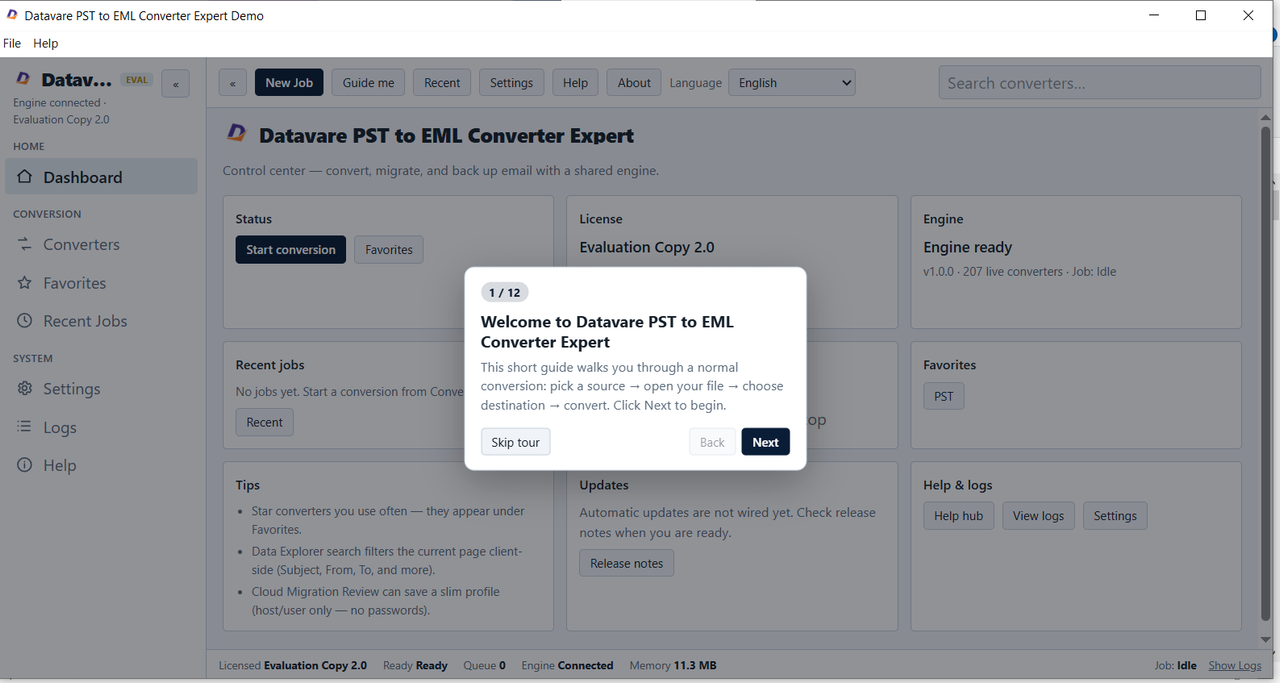
Step 4: Load PST File
Choose the Outlook PST file with the help of the browse option of the software. If the file is large, give the software enough time to load and analyze the mailbox structure.
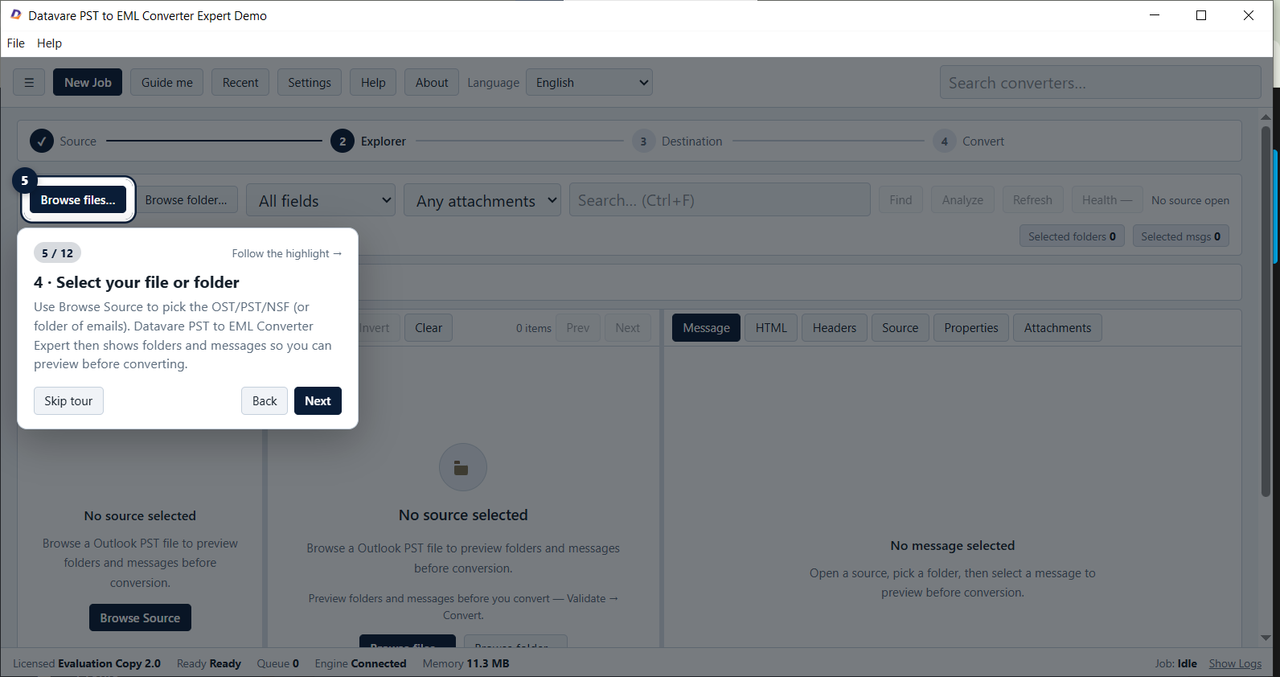
Step 5: Preview Mailbox Data
After loading the PST, go through the folder structure and email items available. Select the mailbox folders or messages you want to convert.
Step 6: Choose EML as Output
Choose EML as a destination format and choose a destination folder. Check destination has enough free storage.
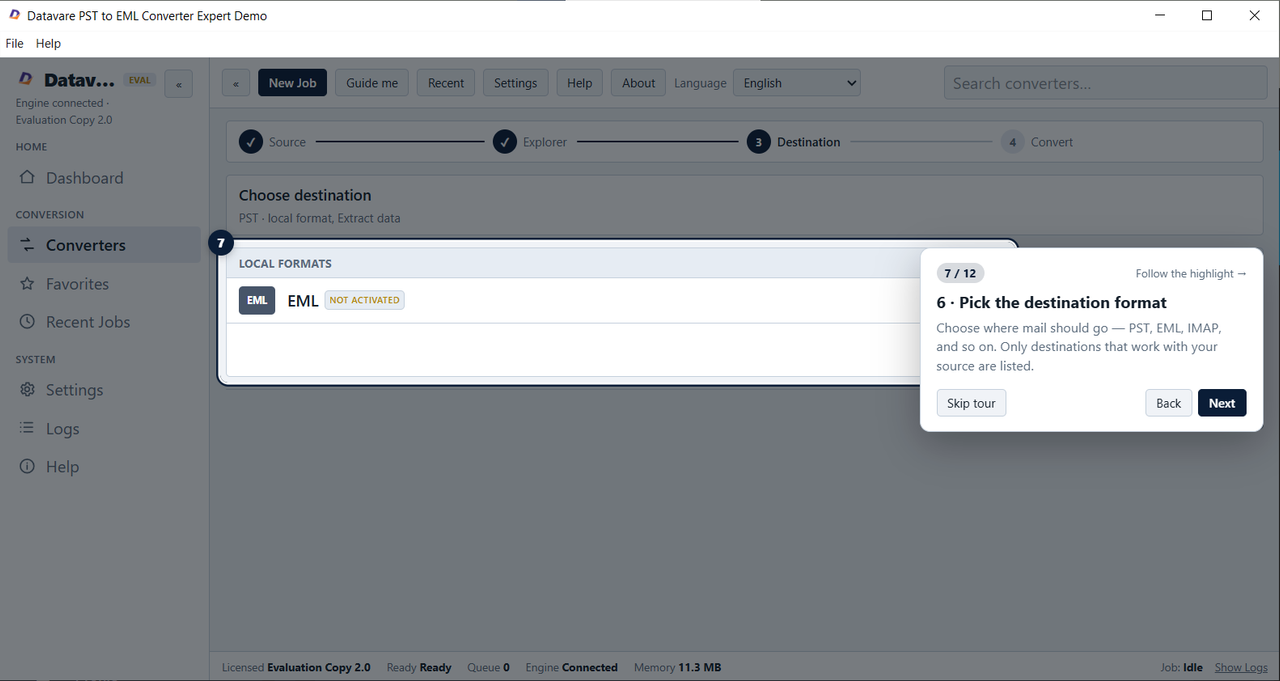
Step 7: Initiate Conversion
Begin the conversion process and let it run its course. During conversion process do not move, rename or delete PST.
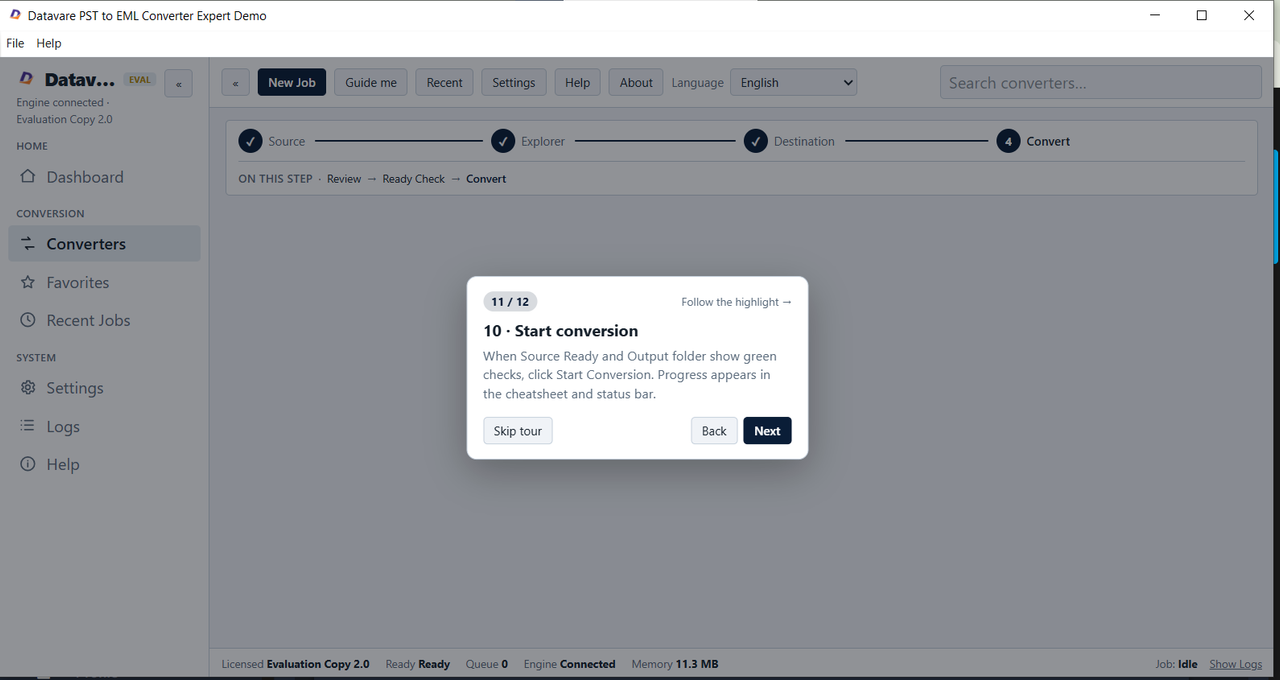
Step 8: Check the Output
Go to the destination folder and check out the created EML files. Open a few messages and look at their content, formatting, sender information, recipients, dates and attachments.
Benefits
Using a dedicated converter has a number of practical advantages:
- Converts multiple Outlook emails to .eml format
- Less need to save emails individually.
- Enhances efficiency for large mailbox exports.
- Supports selective conversion of data required from mailbox.
- Improves usability of EML files with compatible email applications.
- Helps preserve critical email content upon migration.
- Provides a simple workflow for users who do not want to manually export.
May simplify PST to EML migration where Outlook’s standard export procedure is not feasible.
System Requirements
Check the current system requirements of the software before you begin the conversion. A typical Windows conversion setup should have:
Operating System: Any Windows version supported by the Converter.
Processor: Intel/AMD standard processor.
RAM: Minimum 2 GB or more depending on PST size.
Storage: Sufficient free disk space for PST processing and EML output.
PST file: Outlook’s accessible PST file.
Permissions: Source PST read and destination folder write access.
More RAM and free storage can make the conversion process more comfortable for large PST files.
FAQs
Why is my PST file not converting into EML?
The problem can be caused by PST corruption, low storage, permission restrictions, a locked PST, or problems accessing individual mailbox items.
How can I convert a large PST file into EML?
Yes. You can convert big PST files. The time taken to process the files depends on the size of the mailboxes and the number of emails, attachments, performance of your computer and available storage.
Do I need to keep Outlook open while converting?
As a general rule, it’s best to close Outlook before you begin a PST conversion, to avoid having another process lock the PST file in use.
I lost some emails after conversion. What should I do?
Verify that the messages are in the original PST file. Also, check that you selected the right folders and that the conversion has finished without interruption.
Where are the attachments in my EML files?
Make sure that the attachments are there in the original outlook messages. Also, make sure that the conversion has been completed correctly and that the output files are being opened with an EML-compatible email application.
Is there a way to convert particular PST folders?
If you require only selective mailbox folders and not to convert the whole PST then a dedicated converter can be useful. Select the folders you need before starting the export.
What to do if the converter stops while processing PST?
- Check free disk space on your local computer
- Make sure the PST is stored locally
- Close Outlook
- Make sure the destination folder is accessible
If the problem persists, try working on a copy of the PST and convert the required mailbox folders individually.
Conclusion
Common PST to EML conversion errors are usually due to PST corruption, file access permissions, large mailbox sizes, low storage space, or issues with manual exporting. Good first steps would be to check the PST, close Outlook, move the file to a local drive, and check permissions.
In case the problem doesn’t get solved, DataVare PST to EML Converter gives specific process to load PST data, select mailbox contents, convert into EML and view the created files. If you have large or problematic mailboxes a structured conversion process can help make the migration easier to manage and troubleshoot.