30 Days of CTF Series | Day 2: Linux Basics for CTF (Your First Steps in the Terminal)
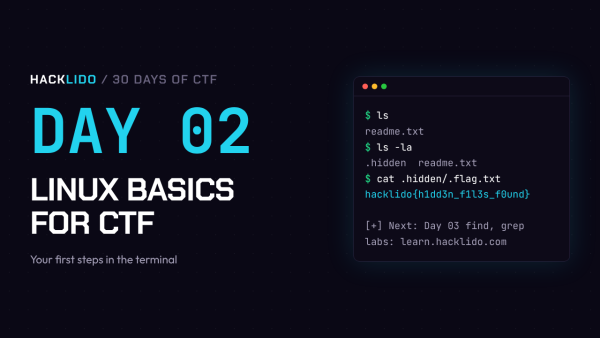
Welcome to Day 2 of the 30 Days of CTF series.
Yesterday you learned what a CTF is and captured your first flag. Today we start with the most important skill for any CTF player: Linux.
Don’t worry if you have never used a terminal before. We will go slowly, one command at a time, and by the end of this blog you will be moving around a Linux system and finding hidden flags on your own.
Practice lab for Day 2: learn.hacklido.com
Why Linux for CTF?
- Most CTF challenges run on Linux servers.
- Almost every hacking tool is built for Linux.
- Many flags are hidden inside files and folders that you can only reach through the terminal.
In simple words, if you know Linux, half of your CTF journey becomes easy.
How to Get Linux
You have three easy options. Pick any one.
- Use the Hacklido lab (easiest): Open learn.hacklido.com and use the browser based lab. No installation needed.
- Install a Virtual Machine: Download VirtualBox or VMware and install Kali Linux or Ubuntu inside it.
- Use WSL on Windows: Open PowerShell as administrator and run
wsl --install. This gives you Ubuntu inside Windows.
If you are a complete beginner, start with option 1 today and set up a VM later.
Meet the Terminal
The terminal is a window where you type commands instead of clicking with a mouse. When you open it, you will see something like this:
hacker@hacklido:~$
hacker is your usernamehacklido is the computer name~ means you are in your home folder$ means the terminal is ready for your command
Now let’s learn the commands.
Command 1: pwd (Where am I?)
pwd stands for print working directory. It tells you which folder you are in right now.
$ pwd
/home/hacker
Whenever you feel lost, type pwd.
Command 2: ls (What is here?)
ls shows the files and folders in your current location.
$ ls
Desktop Documents Downloads notes.txt
Now try this:
$ ls -la
-l shows details like size, owner and permissions-a shows hidden files
In Linux, any file whose name starts with a dot (like .secret) is hidden. A normal ls will not show it. This is one of the most common places to hide a flag in beginner CTFs. Always use ls -la.
Command 3: cd (Move around)
cd stands for change directory. It is how you move between folders.
$ cd Documents # go into the Documents folder
$ cd .. # go back one folder
$ cd ~ # go to your home folder
$ cd / # go to the root (top) of the system
$ cd /etc # go directly to a full path
Tip: Press the Tab key while typing a folder or file name. Linux will complete it for you. This saves a lot of time and avoids spelling mistakes.
Command 4: cat (Read a file)
cat prints the content of a file on the screen.
$ cat notes.txt
Remember to check hidden files!
For long files, use less instead. It lets you scroll with the arrow keys. Press q to quit.
$ less bigfile.txt
You can also see just the start or the end of a file:
$ head notes.txt # first 10 lines
$ tail notes.txt # last 10 lines
Command 5: file (What type of file is this?)
In CTFs, a file name can lie. A file called image.png might actually be a text file or a zip file. The file command tells you the real type.
$ file mystery
mystery: ASCII text
Remember the CTF mindset from Day 1: always ask “What is this?” The file command is how you ask Linux that question.
Command 6: Create, Copy, Move and Delete
$ mkdir ctf # create a folder called ctf
$ touch flag.txt # create an empty file
$ cp flag.txt backup.txt # copy a file
$ mv backup.txt ctf/ # move a file into a folder
$ mv old.txt new.txt # rename a file
$ rm new.txt # delete a file
$ rm -r ctf # delete a folder and everything inside it
Be careful with rm. There is no recycle bin in the terminal. Once deleted, it is gone.
Command 7: Getting Help
Nobody remembers every option of every command. Even experts use these daily:
$ man ls # full manual for ls (press q to quit)
$ ls --help # quick help
A Quick Look at File Permissions
When you run ls -la, you will see something like this:
-rw-r--r-- 1 hacker hacker 42 Nov 15 10:00 notes.txt
-rwx------ 1 root root 30 Nov 15 10:00 flag.txt
The first part (-rw-r--r--) shows who can do what with the file:
r means readw means writex means execute (run it as a program)
The three groups are for the owner, the group, and everyone else.
In the example above, flag.txt is owned by root and only root can read it. In later days, you will learn how hackers get around this. That is called privilege escalation, and we will cover it in Week 4.
For now, just remember: if you see Permission denied, it is because of these permissions.
Let’s Solve a Challenge Together
Imagine a challenge says:
“The flag is hiding somewhere in the challenge folder. It does not want to be seen.”
The words “does not want to be seen” are a hint. Let’s solve it step by step.
Step 1: Go to the challenge folder.
$ cd challenge
Step 2: List the files normally.
$ ls
readme.txt
Step 3: Read the visible file.
$ cat readme.txt
Nothing here. Or is there?
Step 4: Look for hidden files.
$ ls -la
total 16
drwxr-xr-x 3 hacker hacker 4096 Nov 15 10:00 .
drwxr-xr-x 5 hacker hacker 4096 Nov 15 10:00 ..
drwxr-xr-x 2 hacker hacker 4096 Nov 15 10:00 .hidden
-rw-r--r-- 1 hacker hacker 27 Nov 15 10:00 readme.txt
There is a hidden folder called .hidden.
Step 5: Go inside and look again.
$ cd .hidden
$ ls -la
-rw-r--r-- 1 hacker hacker 28 Nov 15 10:00 .flag.txt
Step 6: Read the flag.
$ cat .flag.txt
hacklido{h1dd3n_f1l3s_f0und}
Flag captured. You just used cd, ls, ls -la and cat together, which is exactly how real beginner CTF challenges are solved.
Day 2 Cheat Sheet
Save this in your notes:
pwd: show current folderls -la: list all files including hidden onescd folder: go into a foldercd ..: go back one foldercat file: read a fileless file: read a long file (q to quit)head / tail: first or last lines of a filefile name: find the real type of a filemkdir, touch, cp, mv, rm: create, copy, move and deleteman command: open the manualTab key: auto complete names
Day 2 Task
Practice lab for Day 2: learn.hacklido.com
What’s Next?
In Day 3, we will learn the Linux power tools that CTF players use every single day: find, grep and strings. With these, you can search through thousands of files and find a flag in seconds.
See you tomorrow on Day 3. Happy hacking.